The autofill feature populates field answers using information from the respondent's browser. You can set up fields that are commonly asked, such as names, addresses, and contact details, to draw that information from the browser, saving the respondent time when filling out the form.
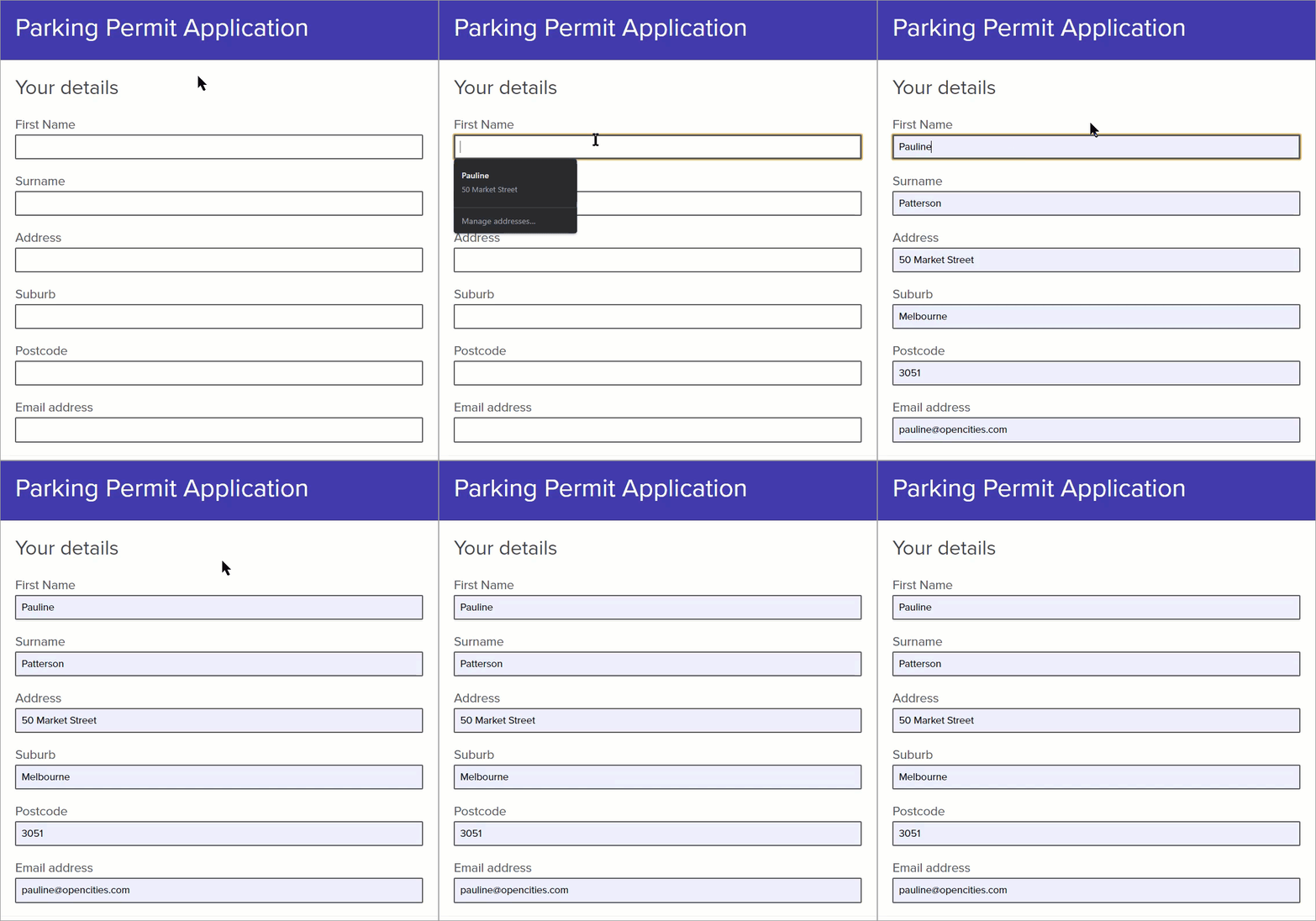
Form authors must set autofill up for each field they want to use it on and must disable it for each field they don't want it on. You can use autofill on the following fields:
Set Up Autofill
- In your form, select the gear icon to open the field settings of a Text, Dropdown, Date, or Email field.
- In the Basic tab, use the Browser autofill field name drop-down menu to select which information to autofill. For Date fields, you can only select bday, and for Email fields, you can only select email.
- Save your form.
Turn Off Autofill for Particular Fields
If you don't select anything for this setting, the respondent's browser may attempt to fill them anyway based on field names and descriptions. When you set up autofill, it ensures that the correct information is used. Not choosing anything for this setting can cause errors in the submission and cost your organization and respondents' time.
To stop a respondent's browser from attempting to autofill a field:
- Select the gear icon to open the field settings of a Text, Dropdown, Date, or Email field.
- In the Basic tab, select turn off for this field from the Browser autofill field name drop-down menu.
- Save your form.
Available Autofill Information
The information you can autofill is information stored in respondent's browsers for populating online forms. You can choose to autofill:
- name: The full name of the respondent, e.g., Jane Jessica Smith
- honorific-prefix: A title preceding the respondent's name, e.g., Miss., Mr.
- given-name: The respondent's first name, e.g., Jessica
- additional-name: The respondent's middle name, e.g., Jane
- family-name: The respondent's surname or family name, e.g., Smith
- honorific-suffix: A title succeeding the respondent's name, e.g., Jr., PhD.
- nickname: A shortened form of the respondent's name, e.g., Jessie
- organization-title: The respondent's job title or title within an organization, e.g., Senior Manager
- username: Respondent's registered username or account name
- organization: The organization the respondent works for, e.g., Granicus
- street-address: The respondent's complete street address, e.g., 101 Collins Street, Melbourne, VIC
- address-line1: First line for an address if street-address is not used, e.g., 101 Collins Street
- address-line2: Second line for an address if street-address is not used, e.g., Melbourne
- address-line3: Third line for an address if street-address is not used, e.g., VIC
- address-level4: The fourth and most-specific administrative level in an address, typically unnecessary.
- address-level3: The third administrative level in an address, e.g., the district
- address-level2: The second administrative level in an address, e.g., the city, town, village, or locality
- address-level1: The first and least specific administrative level in an address, e.g., the state
- country: Country or territory code, e.g., AU
- country-name: The name of the country, e.g., Australia
- postal-code: A postal or ZIP code , e.g., 3000 or 2005
- transaction-currency: The currency for a payment
- transaction-amount: The amount given in the specified currency for a payment
- language: User's preferred language
- bday: The respondent's date of birth, given in full
- sex: The respondent's gender identity
- url: A website address, e.g., a personal website or corporate homepage
- tel: The complete telephone number of the respondent, including the country code, e.g., +61 03 9913 0020
- tel-country-code: The country telephone code, e.g., +61 or +1
- tel-national: The complete phone number without the country code, e.g., 03 9913 0020
- tel-area-code: The area code for the phone number, e.g., 03
- tel-local: The phone number without the country or area code, e.g., 9913 0020
- tel-local-prefix: The first set of digits following the area code, e.g., 9913
- tel-local-suffix: The second set of digits following the area code, e.g., 0020
- tel-extension: The extension for the phone number, such as a room or office number
- email: The respondent's email address